
.png)

Blog
How to add the WhatsApp icon to your travel agency's website
.png)
Table of contents
Nowadays, any company that cares about dealing with its customers knows that WhatsApp has long since abandoned the private sphere to become just another way of serving customers. In most cases, it behaves like a post-sales communication channel, that is, normally to offer customer support throughout its customer. However, there are few agencies that use it in an earlier phase, that of selling. Therefore, the objective of this article is to offer an alternative use of WhatsApp to help the travel agent incorporate their WhatsApp into the business process. Specifically, we will do this by integrating the green application icon on your website.
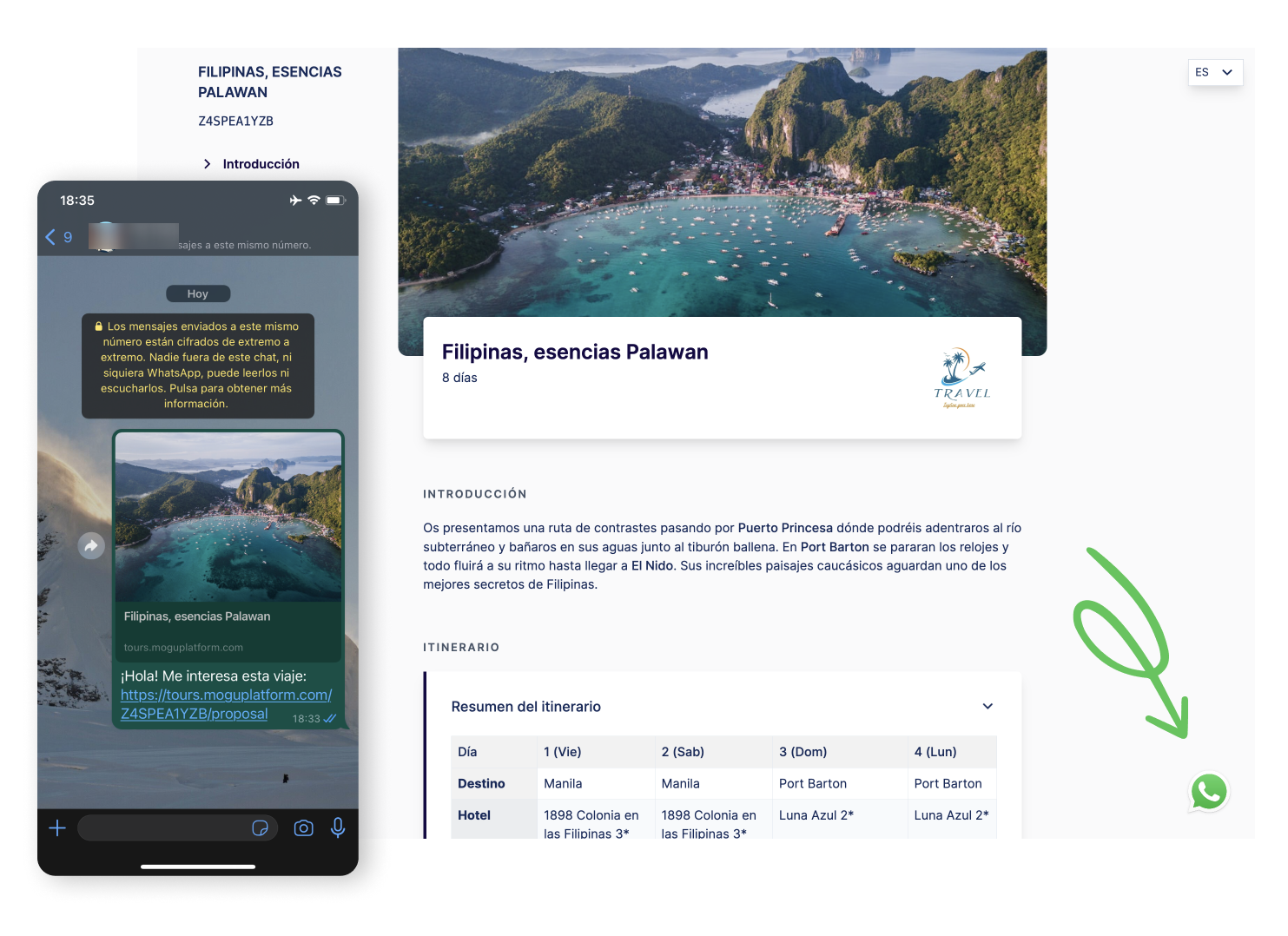
Despite being a simple functionality, most web platforms such as Wix, SquareSpace or Wordpress don't offer any plugin to configure it quickly and easily, or at least, agencies don't know it or think it's something they would need to hire a computer scientist for. The reality is that it's much simpler than that. All you have to do is copy the text that we share with you below, edit your mobile number and paste it into the “header” of your website. This will automatically add the WhatsApp icon in the lower right corner of the page so that every time someone has a question, they can start a conversation with you on WhatsApp. The interesting thing about this is that you can also identify from which trip on your website they are writing to you.
Trip code to paste in the header: (wherever you see a mobile number, you have to replace it with your own):
<a id="whatsapp-button" href="#" style="position: fixed; bottom: 32px; right: 32px; background-image: url('https://upload.wikimedia.org/wikipedia/commons/thumb/5/5e/WhatsApp_icon.png/598px-WhatsApp_icon.png'); background-size: cover; height: 64px; width: 64px; z-index: 100;"></a><script type="text/javascript">() => {const phone = '34630582217'; const text = 'Hello! </script><style>I'm interested in this trip: '; const url = window.location.href; const el = document.getElementByID (' whatsapp-button '); const processedMessage = encodeURI (text +' '+ url); el.href =' https://api.whatsapp.com/send?phone =' + phone + '&text=' + processsedMessage;}) () @media screen and (max-width: 1000px) {#whatsapp -button {bottom: 124px! important;}}</style>
To carry out this action, it is important that you have a website to present your trips. If you don't have one yet, don't worry, with MOGU you can compose your trips online in one click. In addition, the configuration of Whatsapp in this case is automatic, you will not have to add the code by hand as indicated above. If you are interested in trying it out or for us to guide you in the use of how to implement WhatsApp on your website, write to us at app@moguplatform.com or start your free trial here: https://app.moguplatform.com/register